USB Hidden Copier Pro Crack Free Download is the best auto copy File to/from USB silently. USB Hidden Copier is a unique program that silently and automatically copies files and data from USB devices to your computer; with it, you can back up all your USB drives without clicking any button. Plug in your USB drive, and you’re done, or collect data from USB drives that people connect to your computer. You choose what file types to copy: you have complete control and no monitoring required because it runs automatically on Windows startup and detects USB drives instantly upon insertion. USB Hidden Copier is capable of silently duplicating the specified types of files from any USB device connected to your computer. This way, you can monitor the contents of USB memory devices for all the people who use your computer. It stores the duplicate data in a local folder so you can easily inspect it later.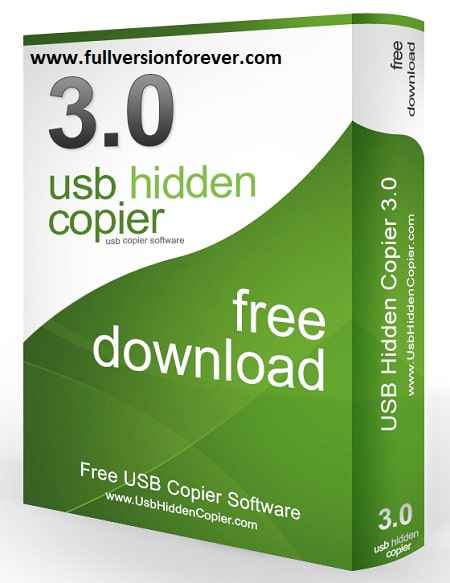
USB Hidden Copier Pro Crack Free Download Full Version Screenshots:
Its main purpose is to allow you to identify the source of viruses, malware or other malicious applications that can infect your computer without you knowing. Additionally, it is a suitable monitoring tool for public computers, such as those in a school, in universities, institutions or at the workplace. USB Hidden Copier is designed to run on Windows startup and automatically activate the backing-up process as soon as you connect a USB device to your computer. Alternatively, you may manually activate/deactivate it. Moreover, the application allows you to select the local folder for data storage. You can select the types of files that you wish the application to copy: pictures, documents, multimedia, or other types of files, except for these. Otherwise, you may choose “All” and thus disable any file filters. You may set the software to ignore a particular device, for example, your own, in order to avoid unnecessary space occupation. USB Hidden Copier is simple to use, lightweight and easy to install. It also features a shortcut to viewing the default folder for data storage. However, in many cases, the files are not copied into the specified directory. 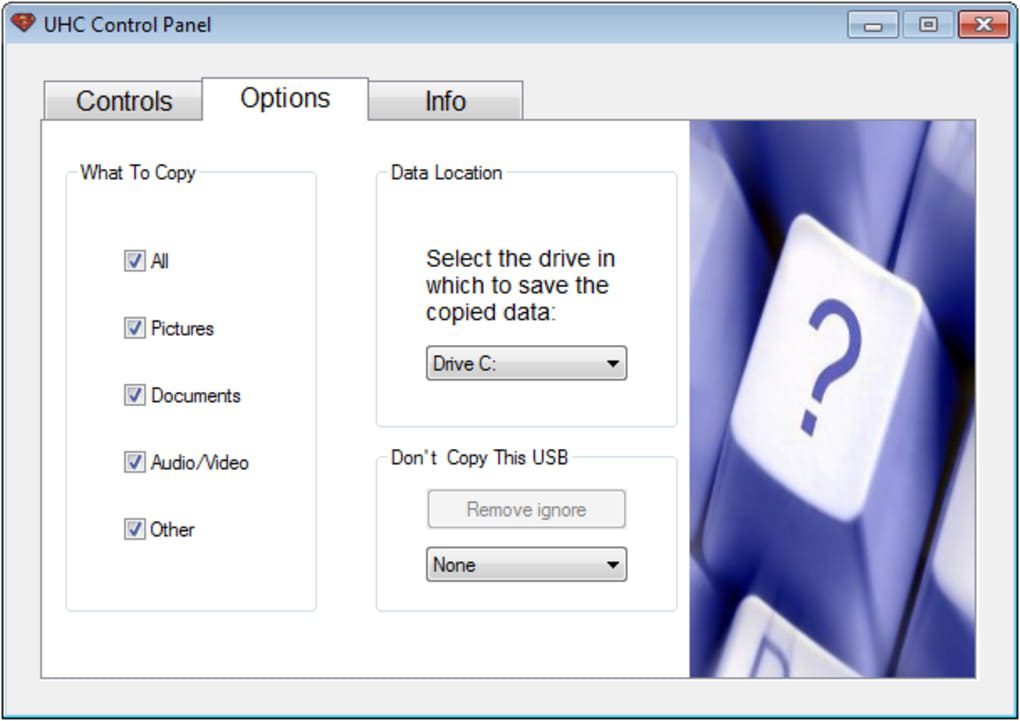
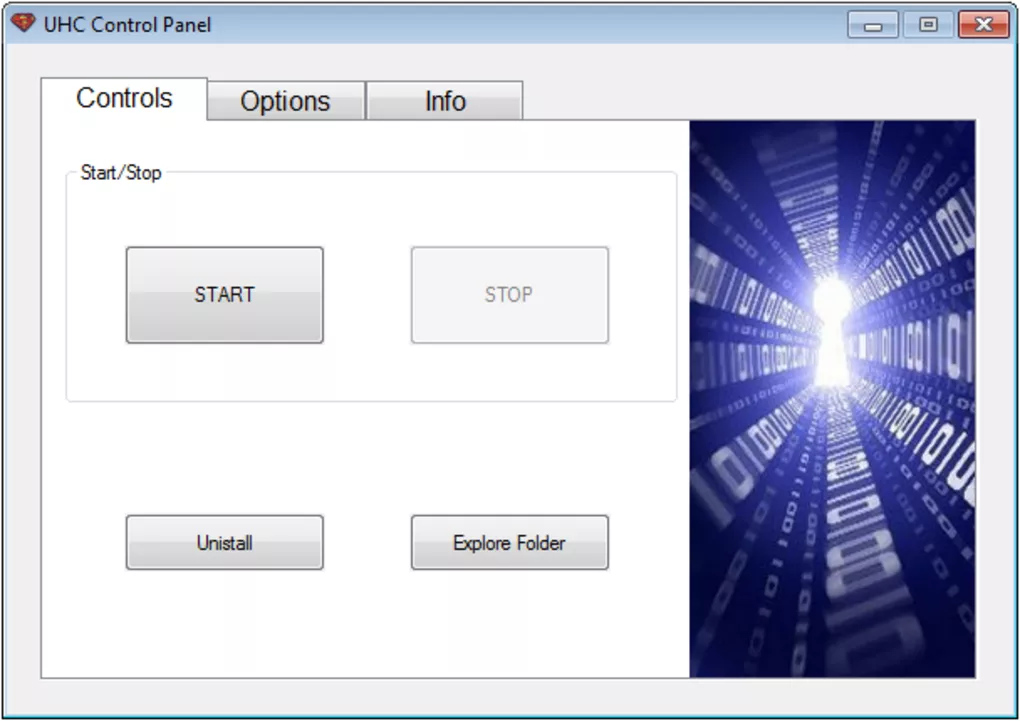 You can choose the variety of information that you want the appliance to repeat, such as footage, paperwork, multimedia, or different sorts of information apart from these. Otherwise, you may select “All” and thus disable any file filters. You could set the software to disregard a specific machine, for instance, your personal, to avoid pointless house occupation. So earlier than utilizing your software. You want first to put it into your system and open your software. Now, set up a setting for extra features. Here, You can select what file sorts to repeat on your laptop. Now, you could have full management and no monitoring required because it runs mechanically on Windows startup and detects USB drives immediately upon insertion. It is an important software because its major goal is to help you establish the supply of viruses. It means the place they arrive as malware or malicious functions that may infect your PC or private laptop without you realizing it. Additionally, it’s an appropriate monitoring device for public computer systems, similar to those in a faculty, university, establishment, or office. So, if you happen to prefer it, then download it from the links given below.
The Features of USB Hidden Copier Latest Version:
- A device that automates information backup
- Light W8 USB copier software.
- Accessible to a used and engaging person interface.
- Auto startup with Windows.
- Supported all Windows working systems.
- The supported operating systems are Windows XP, Vista, 8,8, and Windows 10.
How to download and Install USB Hidden Copier Pro into Windows?
- First, you might want to download it by using the quick downloader setup below.
- After downloading it fully, you might want to extract it with Winrar.
- Installed setup information into Windows
- Start your program and do a setup while you wish to do it when the USB is inserted.
So mates, if you like this program, give the methodology and download it. But before downloading, please do not forget to share this submission with family and friends on FB or Twitter GPlus.